




















Changing the Viewer Options
Наши примеры проектов и шаблоны отчётов помогут Вам разобраться в основах работы с нашими продуктами.The viewer's appearance, toolbar, size and theme can all be configured. This example sets several options and a theme on the component.
Viewer setup. Configure the viewer, load the report, assign it to the component, and process the requests or events raised by the UI.
The
На скриншоте ниже Вы можете увидеть результат выполнения данного кода:
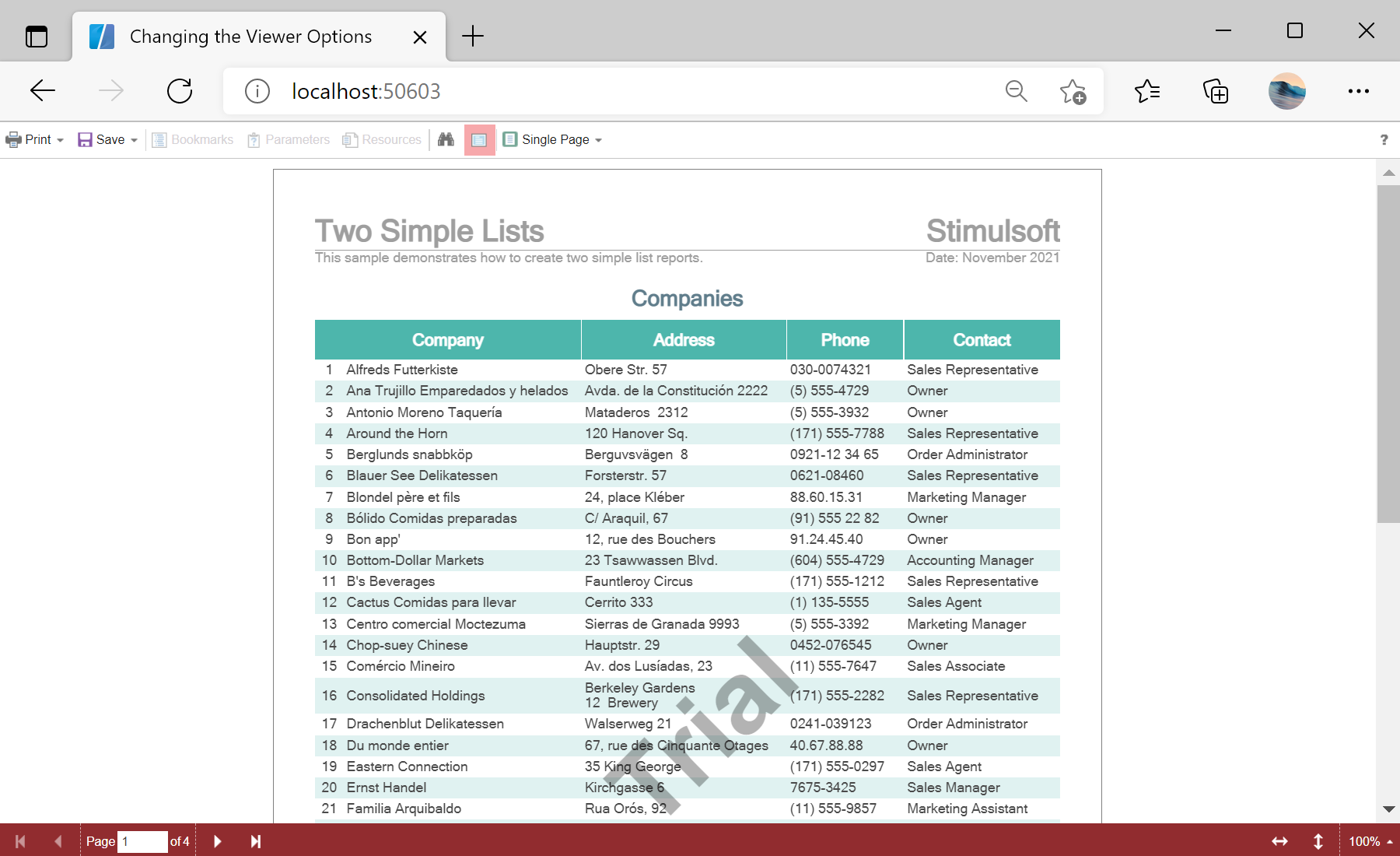
Viewer setup. Configure the viewer, load the report, assign it to the component, and process the requests or events raised by the UI.
@page "/"
@using Stimulsoft.Base
@using Stimulsoft.Report
@using Stimulsoft.Report.Blazor
@using Stimulsoft.Report.Web
@inject HttpClient Http

<!--Report Viewer-->
<StiBlazorViewer Report="@Report" Options="@Options" Theme="StiViewerTheme.Office2022LightGrayCarmine" />

@code
{
    //Report object to use in Viewer
    private StiReport Report;

    //Viewer options object
    private StiBlazorViewerOptions Options;

    protected override async Task OnInitializedAsync()
    {
        await base.OnInitializedAsync();

        //How to activate
        //Stimulsoft.Base.StiLicense.Key = "6vJhGtLLLz2GNviWmUTrhSqnO...";
        //var licenseStream = await Http.GetStreamAsync("Secret/stimulsoft.key");
        //Stimulsoft.Base.StiLicense.LoadFromStream(licenseStream);

        //Init options object
        this.Options = new StiBlazorViewerOptions();

        //Set some options
        this.Options.Appearance.FullScreenMode = true;
        this.Options.Appearance.ScrollbarsMode = true;
        this.Options.Toolbar.ShowOpenButton = false;
        this.Options.Toolbar.DisplayMode = StiToolbarDisplayMode.Separated;

        //Create empty report object
        this.Report = new StiReport();

        //Load report template
        var reportBytes = await Http.GetByteArrayAsync("Reports/TwoSimpleLists.mrt");
        this.Report.Load(reportBytes);
    }
}
The
Width, Height and Theme parameters set the component's size and visual style, while the Options object's Appearance and Toolbar groups control the finer details.На скриншоте ниже Вы можете увидеть результат выполнения данного кода: