




















Using the Full-Screen Mode in the Viewer
Наши примеры проектов и шаблоны отчётов помогут Вам разобраться в основах работы с нашими продуктами.The web viewer can occupy the whole browser window in full-screen mode, useful for report portals and dashboards.
Enabling full-screen. Turn on
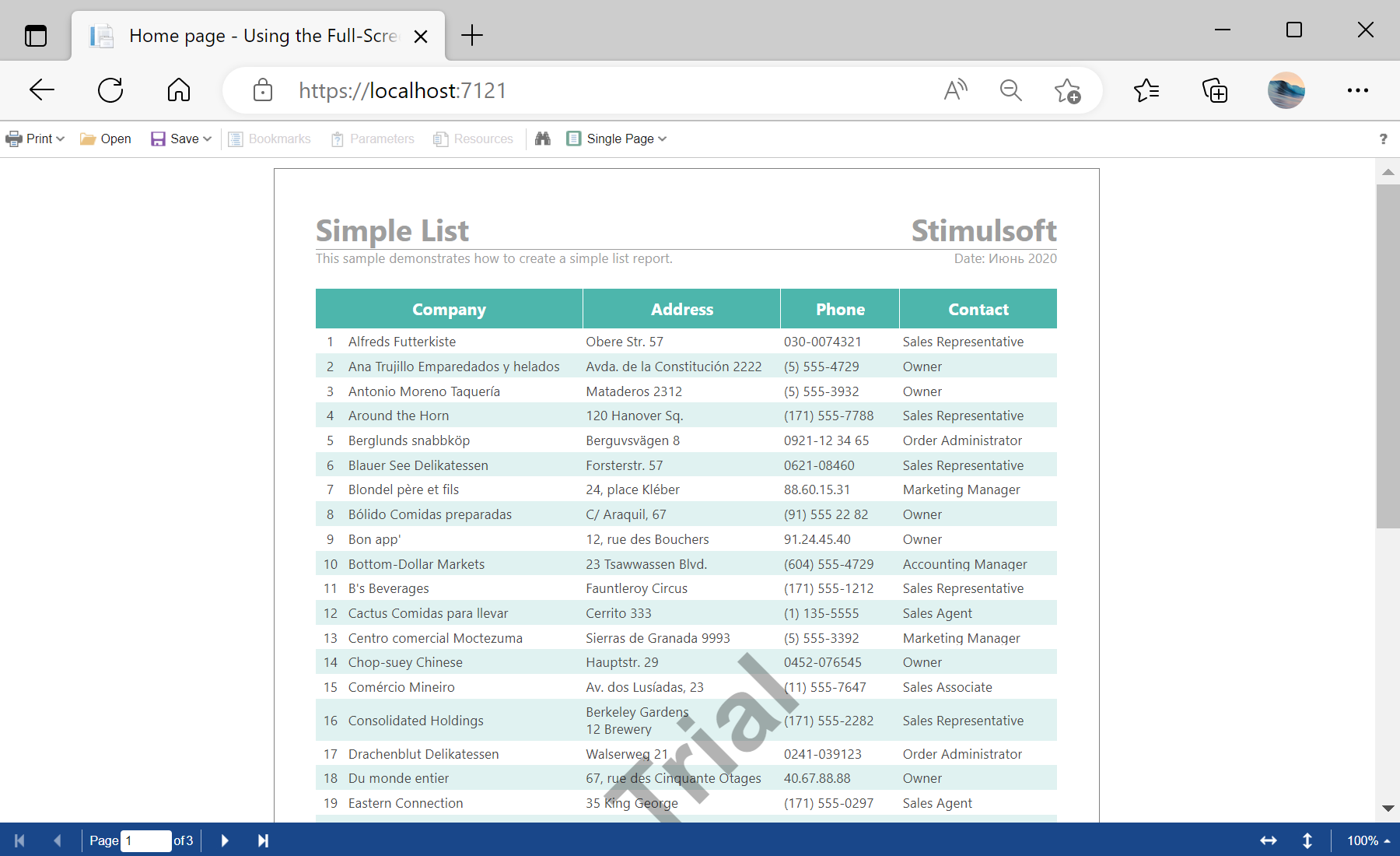
На скриншоте ниже Вы можете увидеть результат выполнения данного кода:
Enabling full-screen. Turn on
FullScreenMode in the appearance options and adjust the toolbar:@using Stimulsoft.Report.Web;
@Html.StiNetCoreViewer(new StiNetCoreViewerOptions()
{
Actions = { GetReport = "GetReport", ViewerEvent = "ViewerEvent" },
Appearance = { FullScreenMode = true },
Toolbar =
{
ShowFullScreenButton = false,
DisplayMode = StiToolbarDisplayMode.Separated
}
})На скриншоте ниже Вы можете увидеть результат выполнения данного кода: